How to Write on a PDF on iPad
Open the PDF in Apple's free Preview app on your iPad, choose the Markup button, pick the pen, and write with your Apple Pencil or your finger. Your notes stay in the PDF when you close the file.
Every step below uses Apple's Preview app (iPadOS 26 and later) and Markup. You don't need another app.
How to write on a PDF with Preview and Markup
-
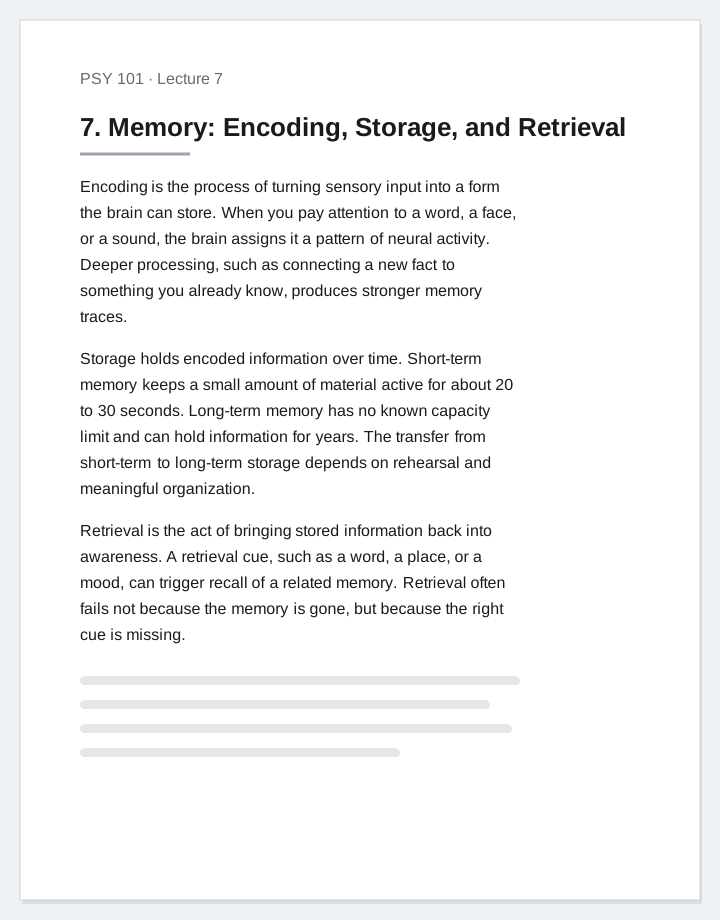
Open the PDF
Go to the Preview app on your iPad and open a PDF. You can also open a PDF from the Files app.
-
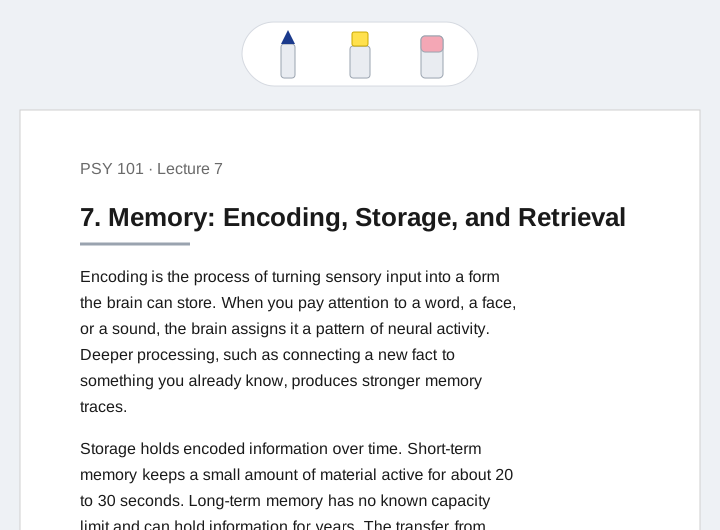
Choose Markup
Choose the Markup button at the top of the screen. The Markup toolbar appears with pens, a highlighter, and an eraser.
-
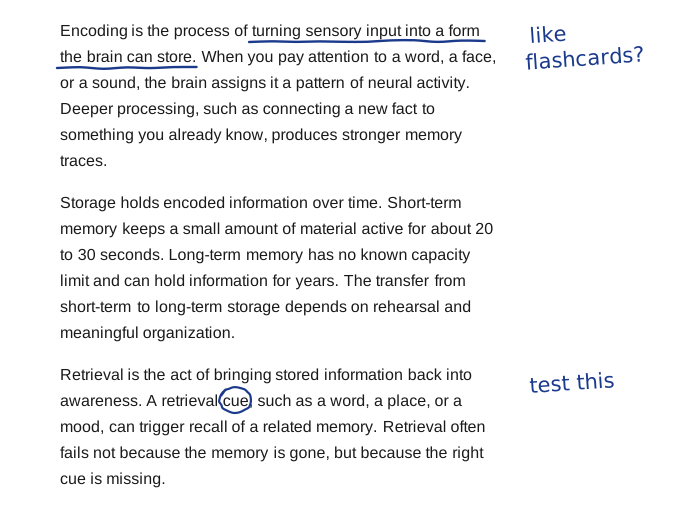
Write with the pen
Pick the pen tool and write with your Apple Pencil or your finger. You can underline text, circle a word, or add a note in the margin.
-
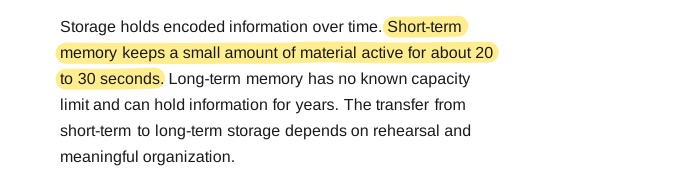
Highlight a line
Pick the highlighter and drag it across a line you want to stand out.
-
Erase a mistake
Pick the eraser tool and drag it across any mark you want to remove. You can also choose the Undo button.

-
Keep and share
Your marks stay in the PDF. Choose the Share button to send the file with your notes in it.
Worked example
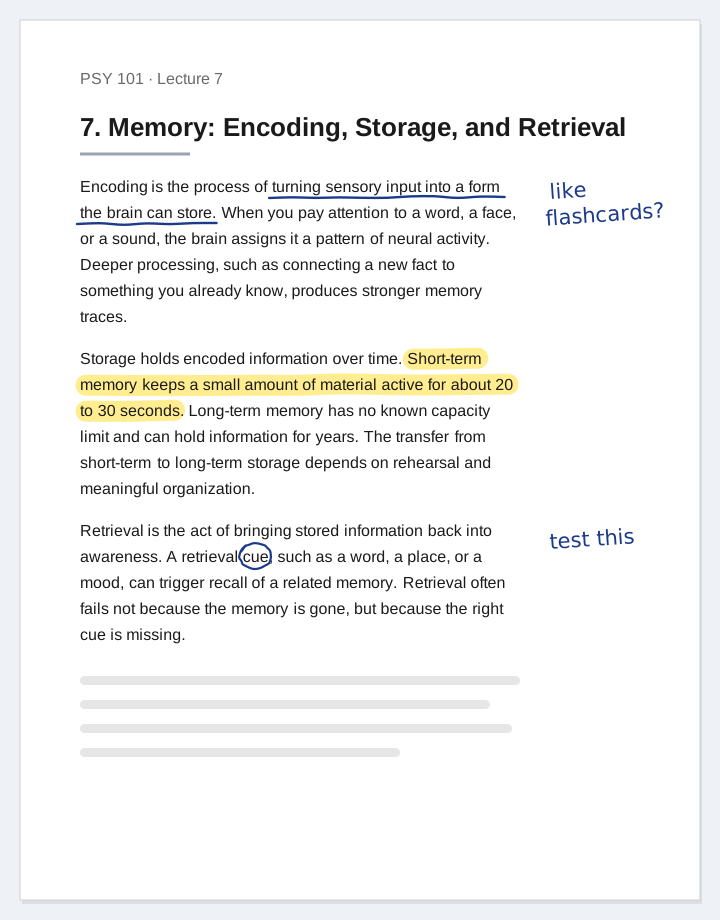
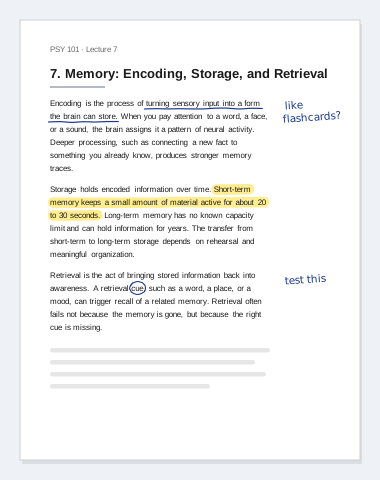
The top image shows one page from a fictional lecture PDF, PSY 101 · Lecture 7, "Memory: Encoding, Storage, and Retrieval," with these marks:
- Underlined: "turning sensory input into a form the brain can store"
- Highlighted: "Short-term memory keeps a small amount of material active for about 20 to 30 seconds"
- Circled: the word "cue"
- Margin note near the encoding paragraph: "like flashcards?"
- Margin note near the retrieval paragraph: "test this"
- Erased: a stray pen line across "Retrieval"
Do the same on your own PDF. Change the marks to match what you're reading.
When there isn't enough room
Your notes go where the page has room. A PDF with narrow margins and dense text leaves little space beside the paragraphs.
Add more room before you write
PagePrep: PDF Margins & Notes is an iPhone and iPad app that widens the margins of a PDF or adds blank and lined pages. Text stays selectable and links keep working. Prep the file, then open it in Preview or Files and write on it with Markup the same way.