How to Add a Blank Page to a PDF on iPad
Open the PDF in Apple's free Preview app, show the page thumbnails, touch and hold the page you want the blank page next to, and choose Insert Blank Page. The new page appears in the file, ready to write on.
Every step below uses Apple's Preview app. You don't need another app.
How to add a blank page to a PDF in Preview
-
Open the PDF in Preview
Go to the Preview app on your iPad and open the PDF. Preview comes with iPadOS 26 and later.
-
Show the thumbnails
Choose the Toggle Sidebar button to show a column of page thumbnails.
-
Pick the page
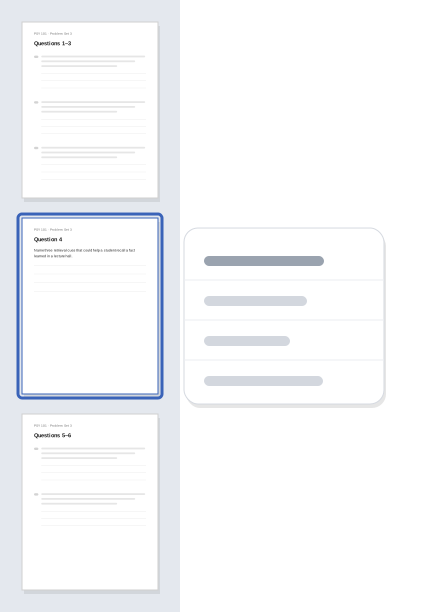
Touch and hold the thumbnail of the page where you want to add a blank page.
-
Choose Insert Blank Page
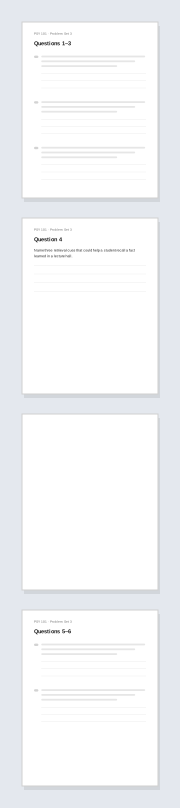
Choose Insert Blank Page from the menu. A new blank page appears in the file.
-
Move it if needed
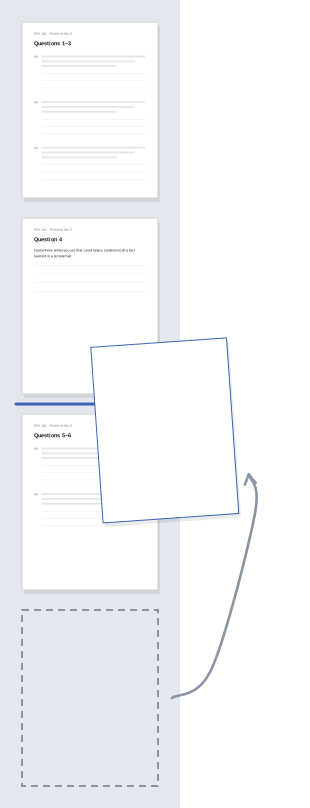
If the blank page landed in the wrong place, drag its thumbnail up or down to the right spot.
-
Write on the new page
Choose the Markup button and write on the blank page with your Apple Pencil or finger.

Worked example
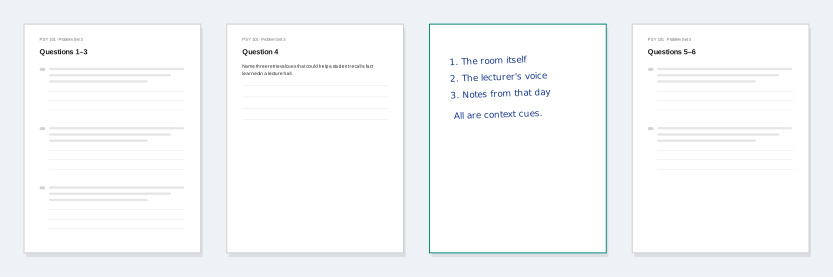
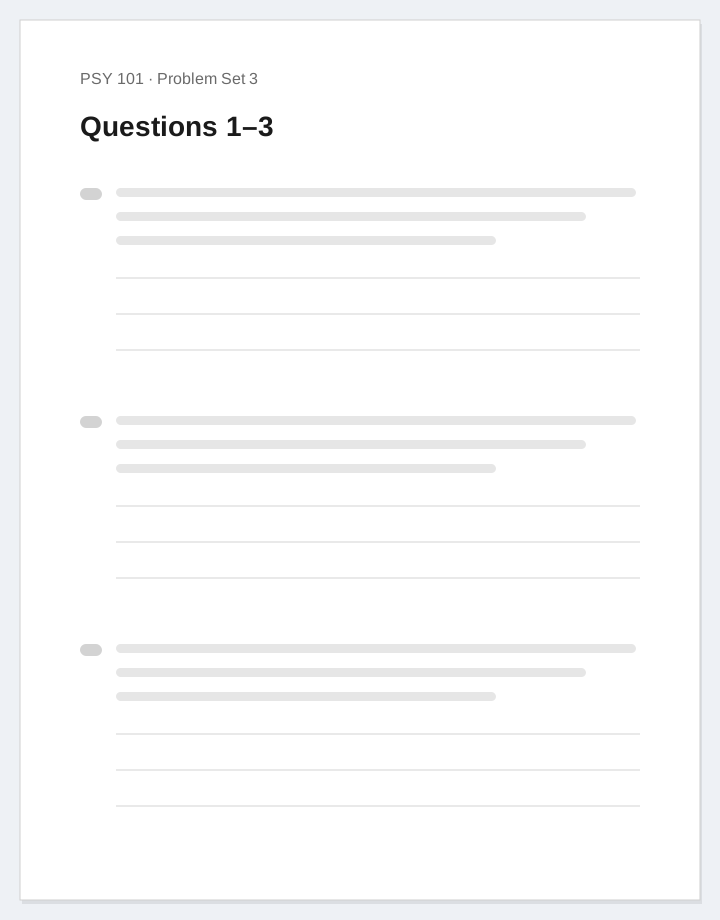
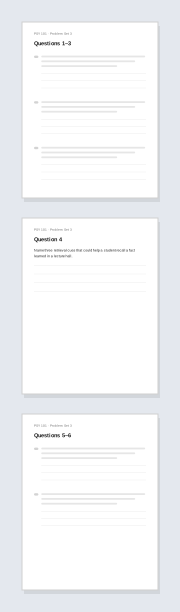
The images above show a fictional 3-page PDF, PSY 101 · Problem Set 3, with a blank page added after page 2. The page order:
- Page 1: Questions 1–3
- Page 2: Question 4
- Blank page: handwritten answer to Question 4
- Page 3: Questions 5–6
Question 4 reads: "Name three retrieval cues that could help a student recall a fact learned in a lecture hall."
The handwritten answer on the blank page:
1. The room itself
2. The lecturer's voice
3. Notes from that day
All are context cues.
Change the page names and answer to match your own file.
What Preview's blank page can and can't do
Preview inserts a blank page with no lines on it. If you need a page with lines, you'll need another tool.
Blank or lined, sized to match
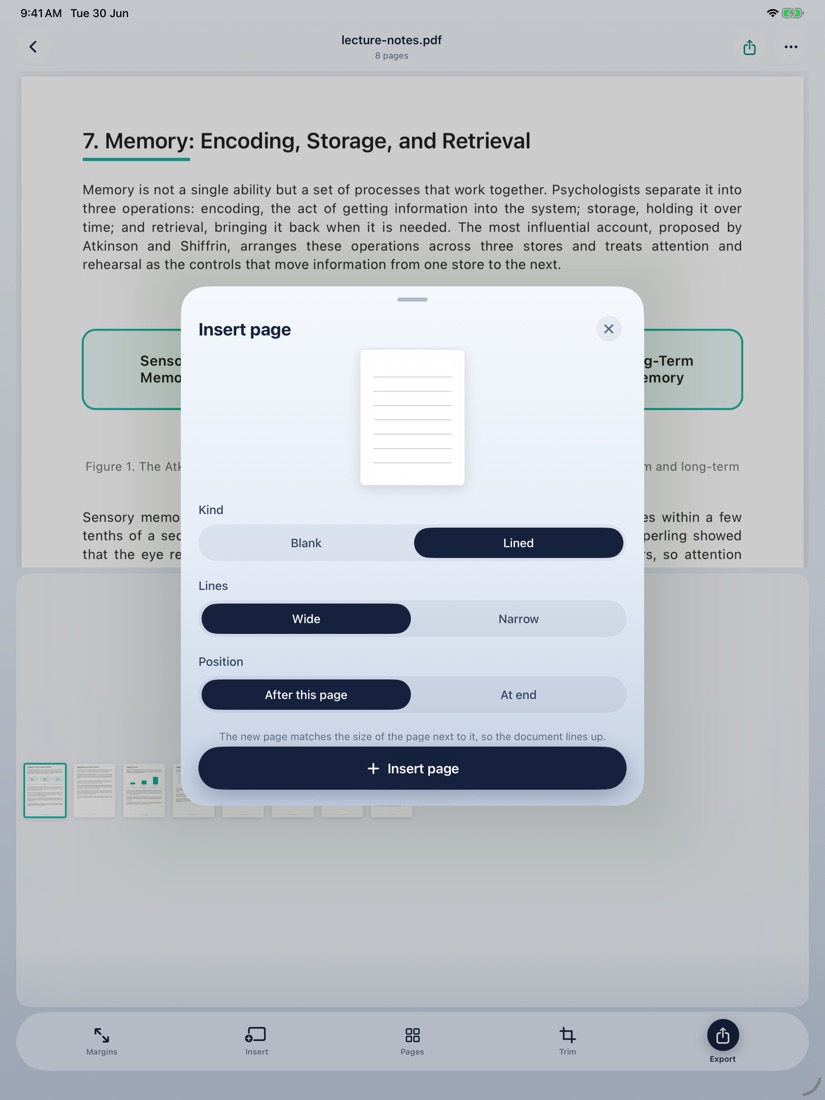
PagePrep: PDF Margins & Notes is an iPhone and iPad app that adds a blank or lined page after any page in a PDF. Choose wide or narrow lines for a lined page. The new page matches the size of the page next to it. Text stays selectable and links keep working.