How to Add Space to a PDF for Notes on iPad
Widen the page margin on the side you write on and apply it to every page, then write your notes in the new space with Apple's Markup. Apple's built-in apps on iPad can't widen a page, so you need an app that can change PDF page size.
The steps below show the settings to choose in any app that changes PDF page size.
How to add space to a PDF for notes
-
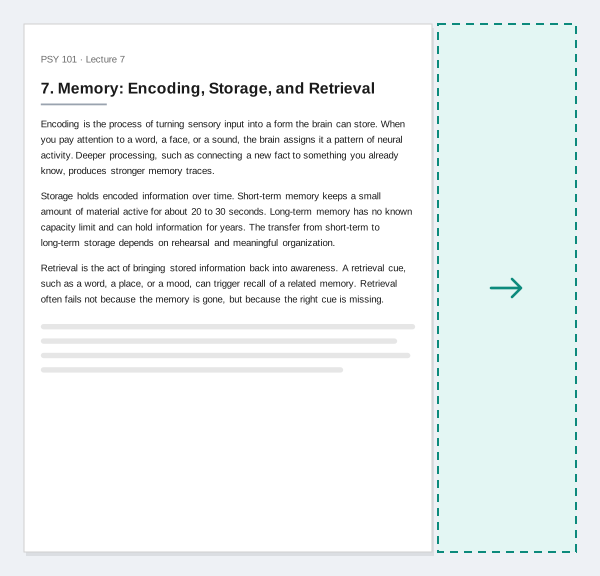
Pick the side
Choose the right margin for notes beside the text. Left-handed writers may pick the left, and for slides the bottom works well.
-
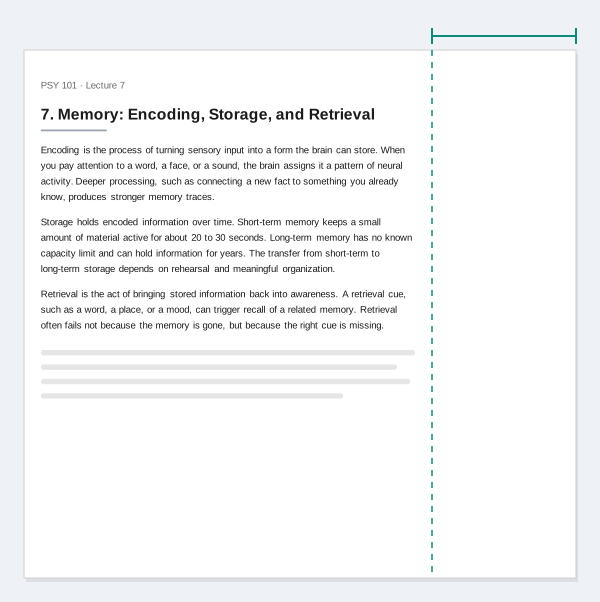
Set the width
Set the margin wide enough for a short note next to each paragraph. About a third of the page width is a common choice.
-
Apply to every page
Apply the same margin to all pages so the file scrolls evenly.
-
The text stays intact
The page grows but the text stays at its full size. Words stay selectable and links keep working.

-
Write in the new space
Open the file in Apple's Preview app or Markup and write in the new margin with your Apple Pencil or finger.
The free option on iPad
For a free option, Apple's Preview can add a blank page next to any page instead. See How to add a blank page to a PDF on iPad.
Worked example
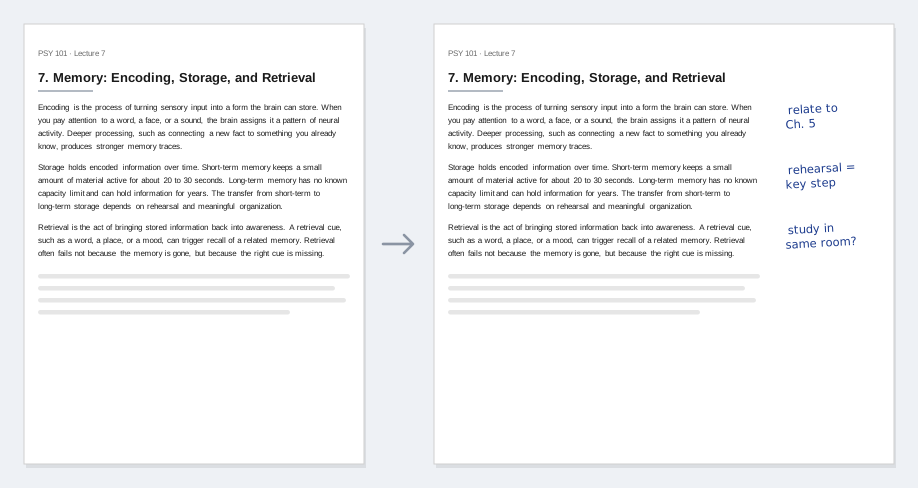
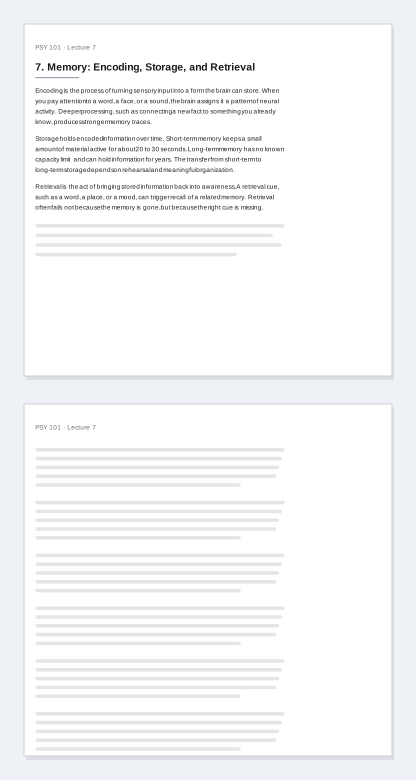
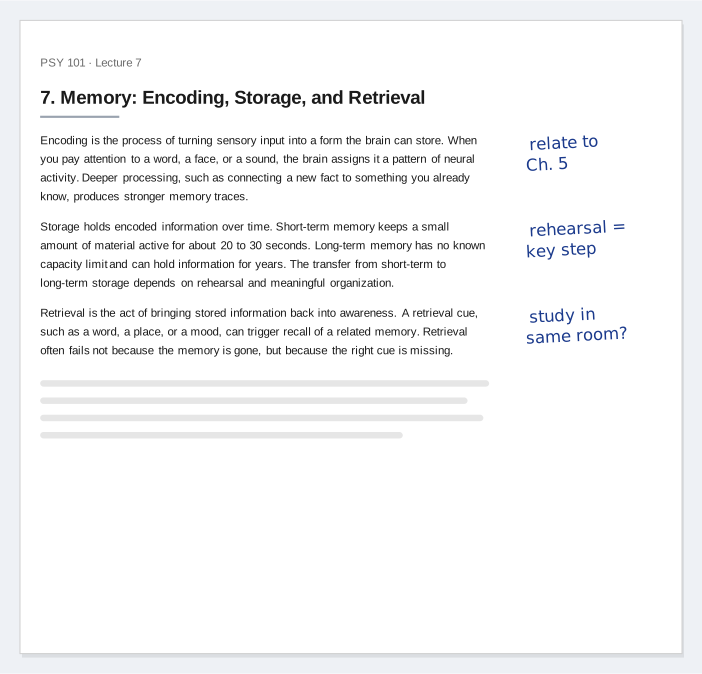
The images above show one page from a fictional lecture PDF, PSY 101 · Lecture 7, "Memory: Encoding, Storage, and Retrieval." The margin settings:
- Right margin: 3 in
- Left, top, bottom margins: 0
- Applied to: all pages
- Page width before: 8.5 in (US Letter)
- Page width after: 11.5 in
Three handwritten notes in the new right margin:
- Next to the encoding paragraph: "relate to Ch. 5"
- Next to the storage paragraph: "rehearsal = key step"
- Next to the retrieval paragraph: "study in same room?"
Change the margin width and notes to match your own file.
An app that widens the margin
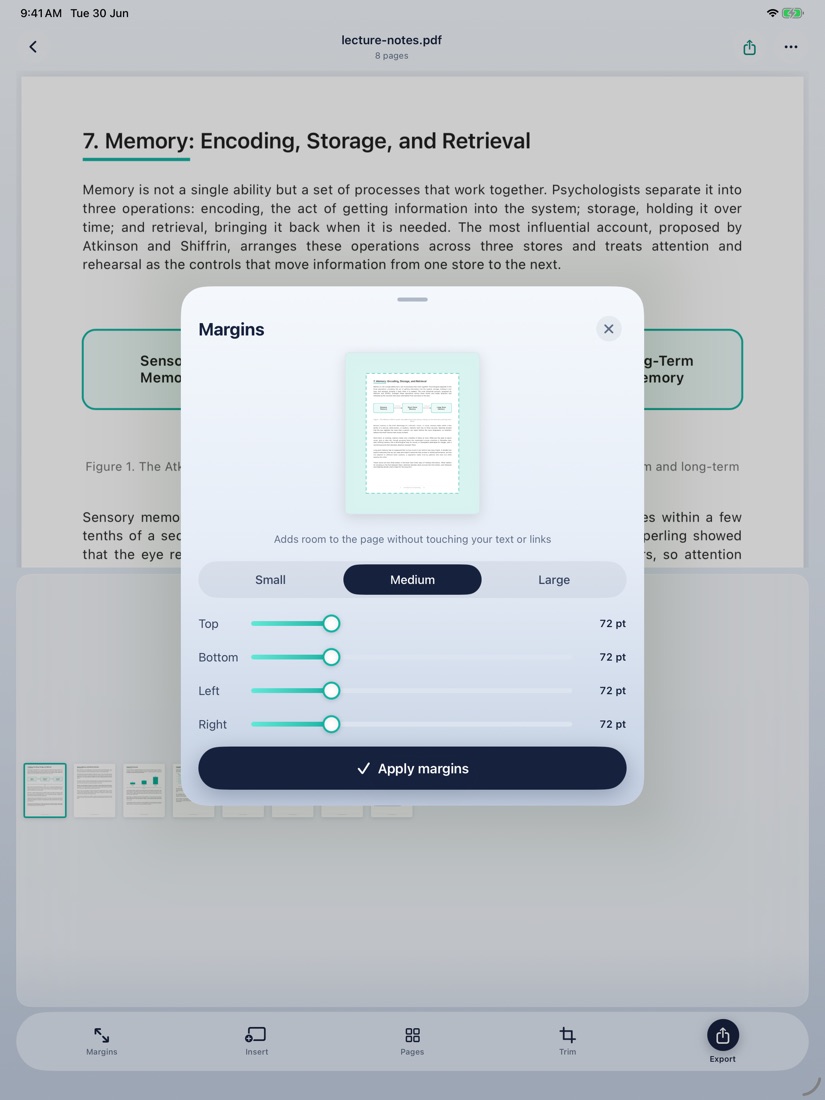
PagePrep: PDF Margins & Notes is an iPhone and iPad app. Set the margin on any side with a slider, or pick Small, Medium, or Large. Apply it to one page or all pages and see the change before you save. Text stays selectable and links keep working.