How to Set Up an RSS Reader on iPad
Get an RSS reader from the App Store (search "rss reader"; several are free), add each site by pasting its address, and read every new article in one list. If you have feeds in an old reader, export an OPML file and import it in the new one.
What to check before you pick a reader
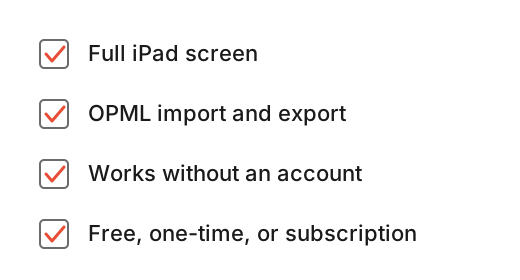
Look for these four things before you pick a reader:
- It fills the whole iPad screen and works in Split View.
- It imports and exports OPML, a file that lists the feeds you follow. You need this to move your feeds between readers.
- It works without creating an account.
- How it is paid for: free, one payment, or a subscription.
How to set up your feeds
-
Find a reader
Open the App Store on your iPad and search "rss reader." Several results are free.

-
Find the feed address
Copy the site's normal address. If the reader can't find the feed, look for an RSS link on the site or try /feed or /rss at the end.

-
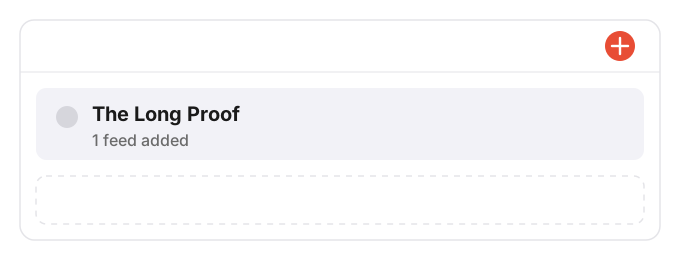
Add the feed
Paste the feed address into the reader. The site appears in your list.
-
Bring your feeds over (OPML)
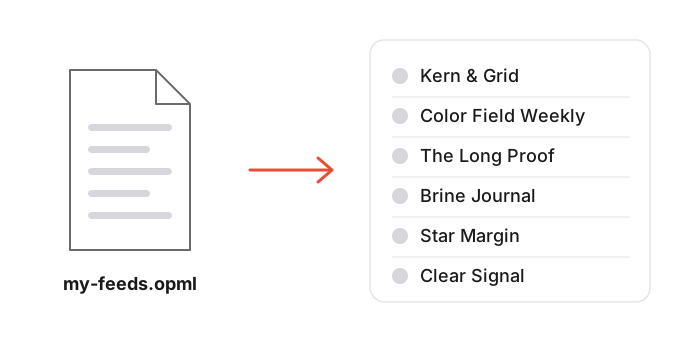
Export your feeds from the old reader as an OPML file. Import it in the new reader, and all your sites appear at once.
-
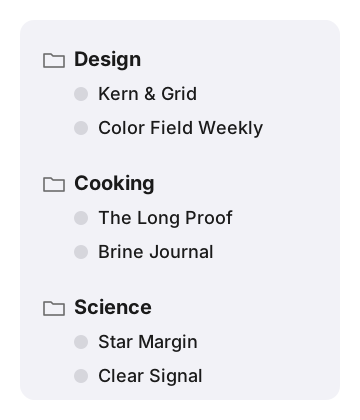
Sort into folders
Drag feeds into a few folders so your list stays short. Name each folder for the topic.
-
Read
New articles from every site appear in one list, with unread ones in bold. Save the ones you want to keep.
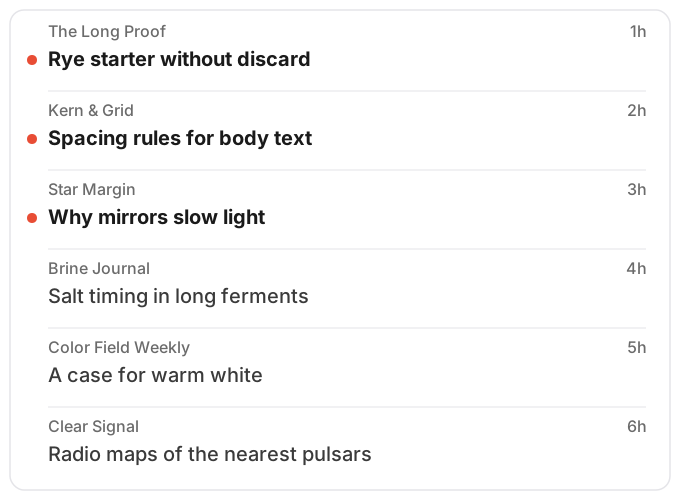
Worked example
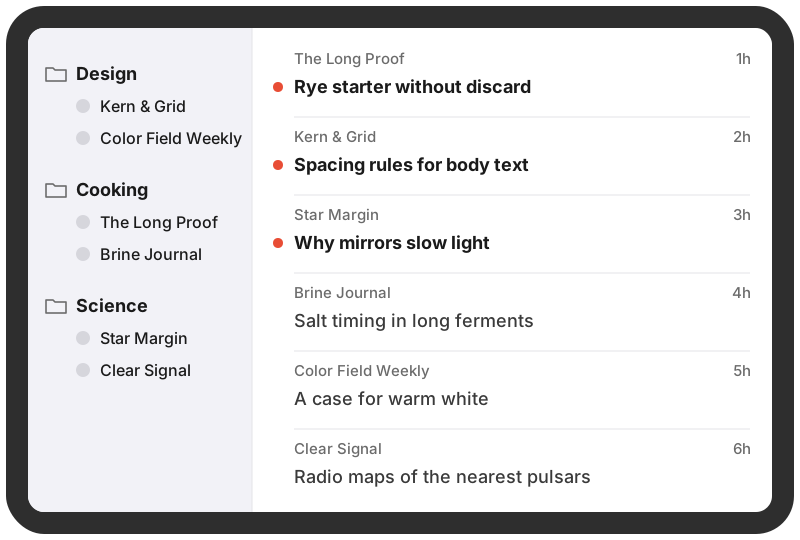
The top image shows a finished reading list with these items:
- Folders: Design, Cooking, Science
- Sites: Kern & Grid, Color Field Weekly, The Long Proof, Brine Journal, Star Margin, Clear Signal
- Three of the headlines: "Spacing rules for body text" (Kern & Grid, 2h), "Rye starter without discard" (The Long Proof, 1h), "Why mirrors slow light" (Star Margin, 3h)
- Unread articles are shown in bold.
Set up your own the same way. Change the folders and sites to match what you read.
The limit
Most readers let you read, save, and highlight text. Few let you write by hand on the article with an Apple Pencil.
The free way: open the article in Safari, choose Share, choose View More, choose Markup, then draw on the page. When you're done, choose Done and Save File To. This saves a PDF copy outside the reader. For the full steps, see how to draw on a web page on iPad.
Write on the article itself
Broadsheet: Annotate RSS Feeds is an RSS reader for iPad where you write on the article with an Apple Pencil. Pen, highlighter, and eraser. Finger drawing can be switched on. Articles are set as fixed pages with a wide margin. Your ink is tied to the words and moves with the text when the type size changes.
Add a feed by its address or paste the site's URL and the app finds the feed. OPML import and export. Save articles and read them later. Export an annotated article as a PDF.
No account, no ads. The App Store privacy label says "Data Not Collected." No iCloud sync, no Mac or iPhone version. iPadOS 17 or later.
Reading is free and so is writing on the first five articles. Then $4.99 once. No subscription.