How to Draw on a Web Page on iPad
Open a web page in Safari on your iPad, choose the Share button, choose View More, then choose Markup. Safari turns the page into a PDF copy. Draw on the copy with the pen, highlighter, or eraser using an Apple Pencil or your finger. When you're done, choose Done, choose Save File To, name the file, and choose Save.
Every step below uses Safari and Markup. You don't need another app.
How to draw on a web page with Safari Markup
-
Open the page in Safari
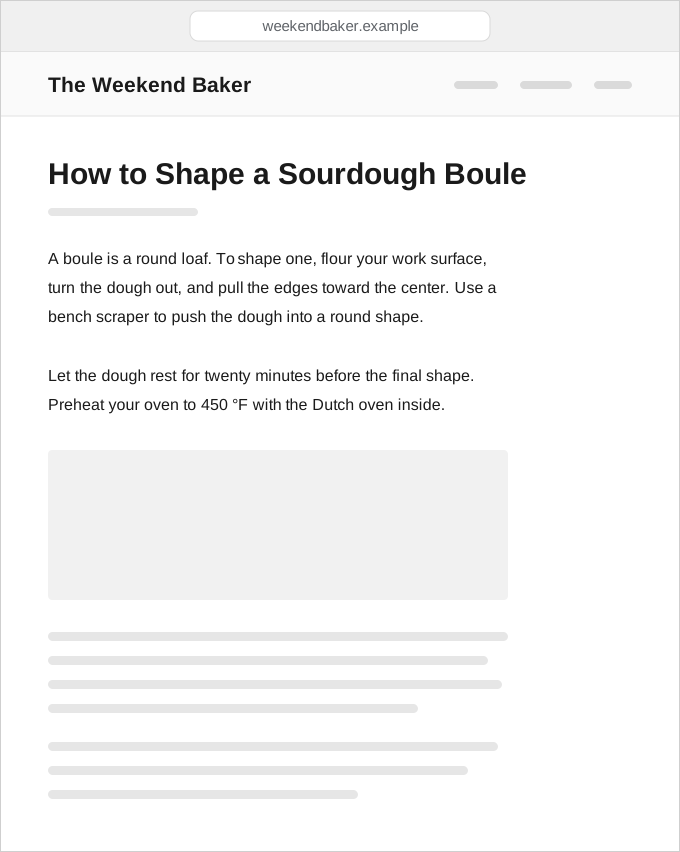
Go to the page you want to mark up in Safari on your iPad.
-
Open Markup
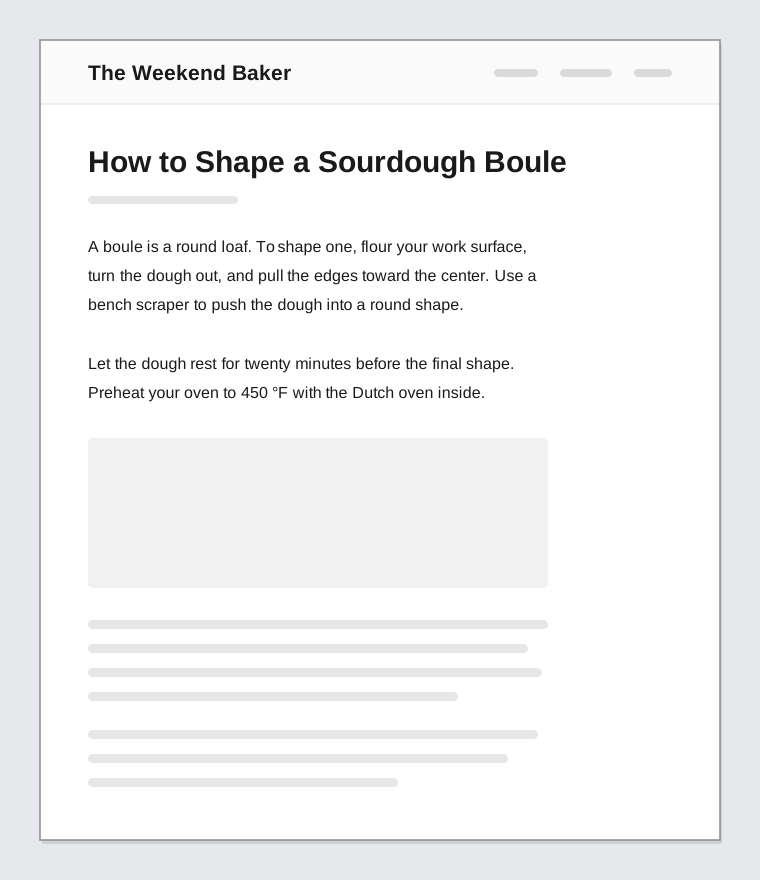
Choose the Share button, choose View More, then choose Markup. Safari makes a full-page PDF copy for you to draw on.
-
Draw with the pen
Pick the pen tool and draw with your Apple Pencil or finger. Underline, circle a word, or drag an arrow between two parts of the page.

-
Highlight a line
Pick the highlighter and drag it across a line you want to stand out.

-
Write a note in the margin
Use the pen to write a short note in the margin next to the text.

-
Erase a mistake
Pick the eraser and drag it across any mark you want to remove.

-
Save as a PDF
Choose Done, then choose Save File To, name the file, and choose Save. The marked-up page is now a PDF in Files.
Worked example
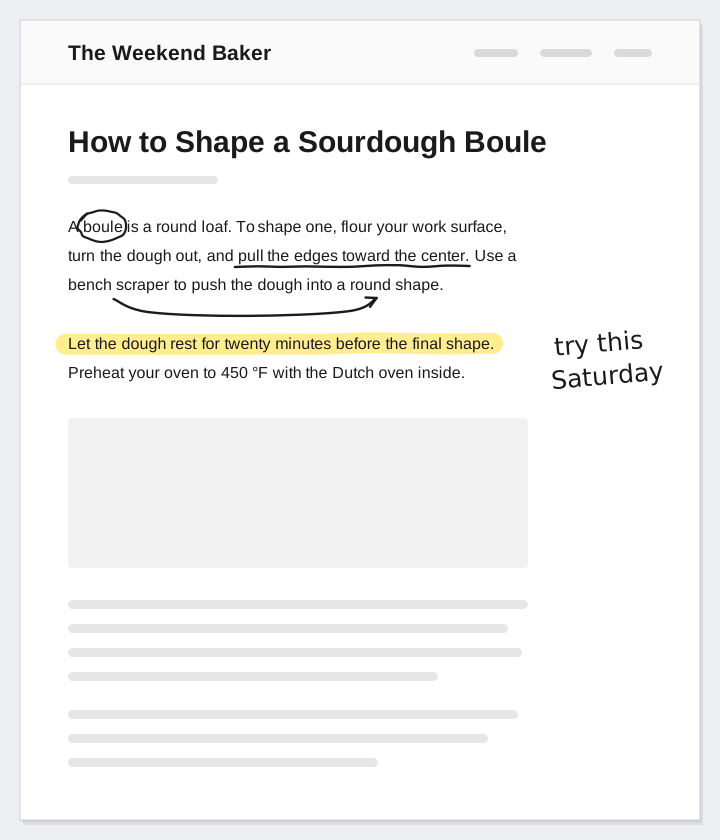
The top image shows a fictional article from The Weekend Baker, "How to Shape a Sourdough Boule," with these marks:
- Underlined: "pull the edges toward the center"
- Circled: the word "boule"
- Highlighted: "Let the dough rest for twenty minutes before the final shape."
- Arrow: from "bench scraper" to "round shape"
- Margin note: "try this Saturday"
- Erased: a stray line across "Preheat"
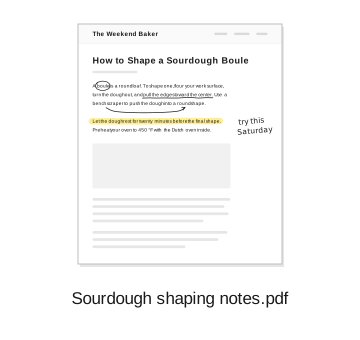
- Saved as: Sourdough shaping notes.pdf
Do the same on your own page. Change the marks to match what you're reading.
What to know about the PDF copy
The marks live on a PDF copy of the web page. If the live page changes after you save, the PDF does not update. You read the marked-up PDF in the Files app, not in Safari.
Draw on the live page instead
Pencilmark: Draw on Web Pages is a Safari extension for iPad (iPadOS 17 or later). It draws on the live page in Safari, not on a PDF copy. Pick the pen, highlighter, or eraser. With an Apple Pencil, the Pencil draws while your finger scrolls. Without a Pencil, you draw with your finger.
Drawings save for each web address on the iPad and come back when you return to the page. Nothing is uploaded.
Pencilmark does not export a PDF of your marks, and there is no iPhone or Mac version. Drawings do not sync between devices.
Free for 7 days, then $4.99 once. No subscription.