How to Write on Safari With Apple Pencil
Apple Pencil can't write or draw on a live web page in Safari. There's no "just start drawing" mode. The Pencil scrolls the page, taps links, and types in text fields, but it won't put ink on top of what you're reading.
Safari does give you three ways to write with Apple Pencil. Each one works differently, and each has limits.
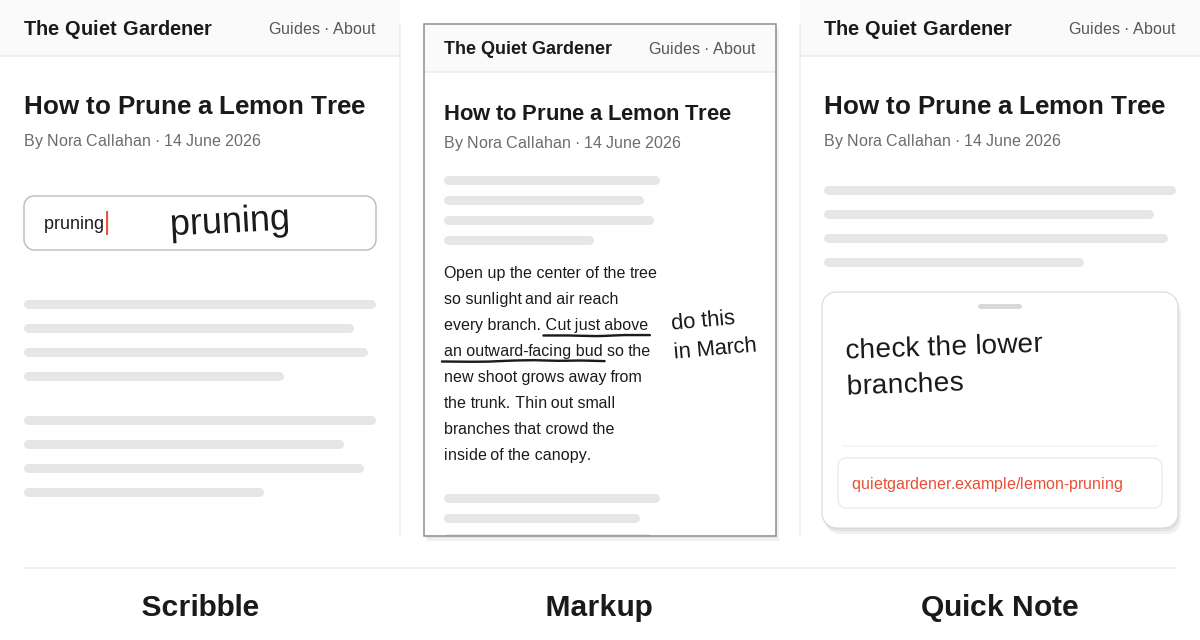
Scribble: handwriting that becomes typed text
Scribble lets you write by hand in any text field on a web page, and iPadOS turns it into typed text. It works in the Safari address bar, in search boxes, and in form fields.
Write a word with Apple Pencil and it appears as typed text. Scratch out a word to delete it. Touch and hold to place the cursor where you want to insert text. Draw a vertical line between two letters to join or split them.
To turn Scribble off, go to Settings, then Apple Pencil.
This only works in text fields. You can't use Scribble to write a note in the margin of a web page or underline a sentence.
Source: Enter text with Scribble on iPad (Apple).
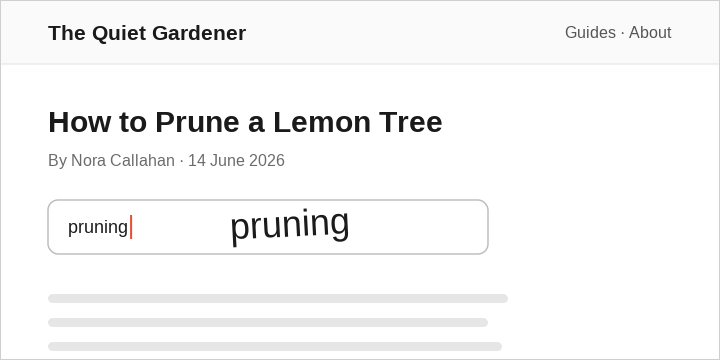
Markup: draw on a PDF copy of the page
Markup lets you draw on a full-page copy of any web page. The marks go on a PDF file, not on the live page.
- Open the page in Safari.
- Tap the Share button, then View More, then Markup.
- Draw with the pen, highlighter, or eraser.
- Tap Done, then Save File To. Name the file and tap Save.
The PDF copy does not change when the live page changes. You read it in the Files app, not in Safari.
We wrote a full step-by-step guide with a worked example: How to draw on a web page on iPad.
Source: Annotate and save a webpage as a PDF on iPad (Apple).
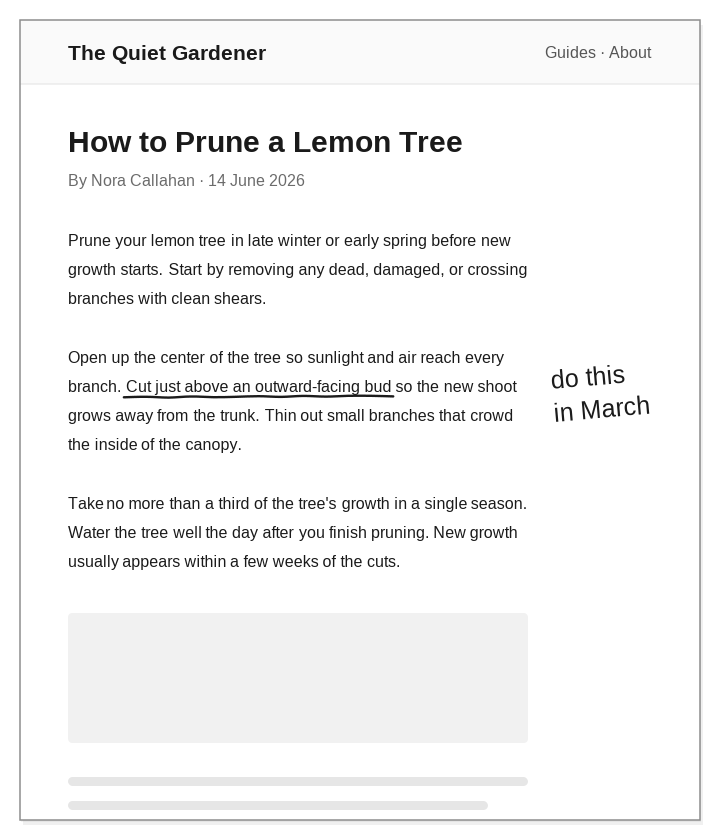
Quick Note: a floating note linked to the page
Quick Note opens a small note window over Safari. Swipe up from the bottom-right corner of the screen with Apple Pencil to open it.
You can add a link to the page and write by hand inside the note. Safari highlights show in the note. The next time you visit that site, a Quick Note thumbnail appears.
Your writing lives in the Notes app, not on the web page. You won't see your handwriting on the page itself.
Source: Use Quick Notes on iPad (Apple).
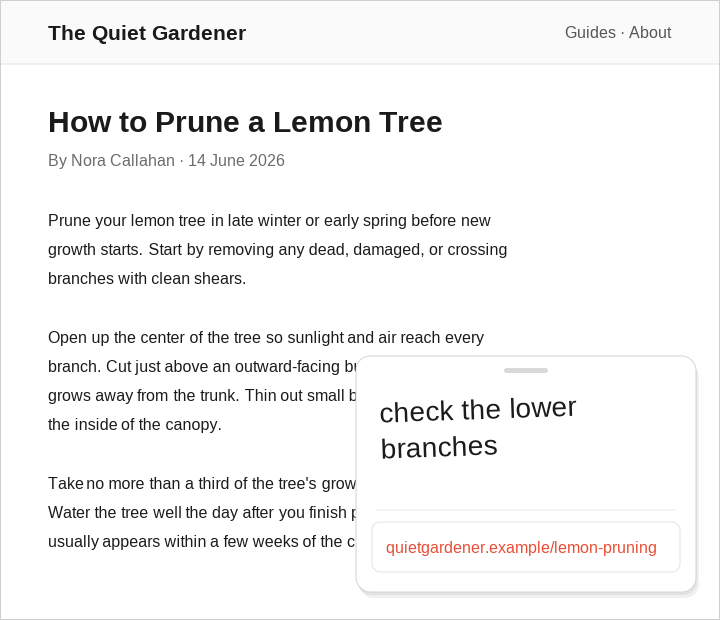
What if you want to write on the live page?
The three options above all work around the same limit: Safari on its own can't put ink on a live web page.
Scribble fills text fields. Markup draws on a PDF copy. Quick Note writes in a separate note.
If you want to underline a sentence, circle a word, or add a note in the margin on a live web page in Safari, Pencilmark is a Safari extension for iPad that does this. Apple Pencil draws on the page while your finger scrolls. Marks save for that page and come back when you open it again on that iPad. No account, nothing leaves the device.
Free for 7 days, then $4.99 once. Requires iPadOS 17 or later.
FAQ
Can I use Apple Pencil to write on a website?
Not directly. Apple Pencil can fill in text fields using Scribble, draw on a PDF copy of the page using Markup, or write in a Quick Note linked to the page. None of these put handwriting on the live web page in Safari.
Does Scribble work on web pages?
Scribble works in text fields on web pages: search boxes, form fields, the Safari address bar. It converts your handwriting to typed text. It doesn't work outside of text fields.
Why does Apple Pencil only scroll in Safari?
Safari on iPad has no built-in way to put ink on a live web page. Apple Pencil can fill in text fields (Scribble), draw on a PDF copy (Markup), or write in a Quick Note. None of these draw on the page itself.
Can I save a web page with my handwritten notes?
With Markup, yes. Share the page, choose Markup, draw your notes, and save as a PDF. The notes live on the PDF copy, not on the live page.